How to Create a Form in TableSprint
This tutorial will teach you how to create a "Contact Us" form using TableSprint. The steps will guide you through adding fields, arranging them on the canvas, and customizing the form to your preference.
Steps to Create a Form Using AI
Open the AI Chat.
Enter a prompt with clear, structured instructions defining the form configuration, such as the worksheet to use, required fields, field types, and validations.
Click Create.
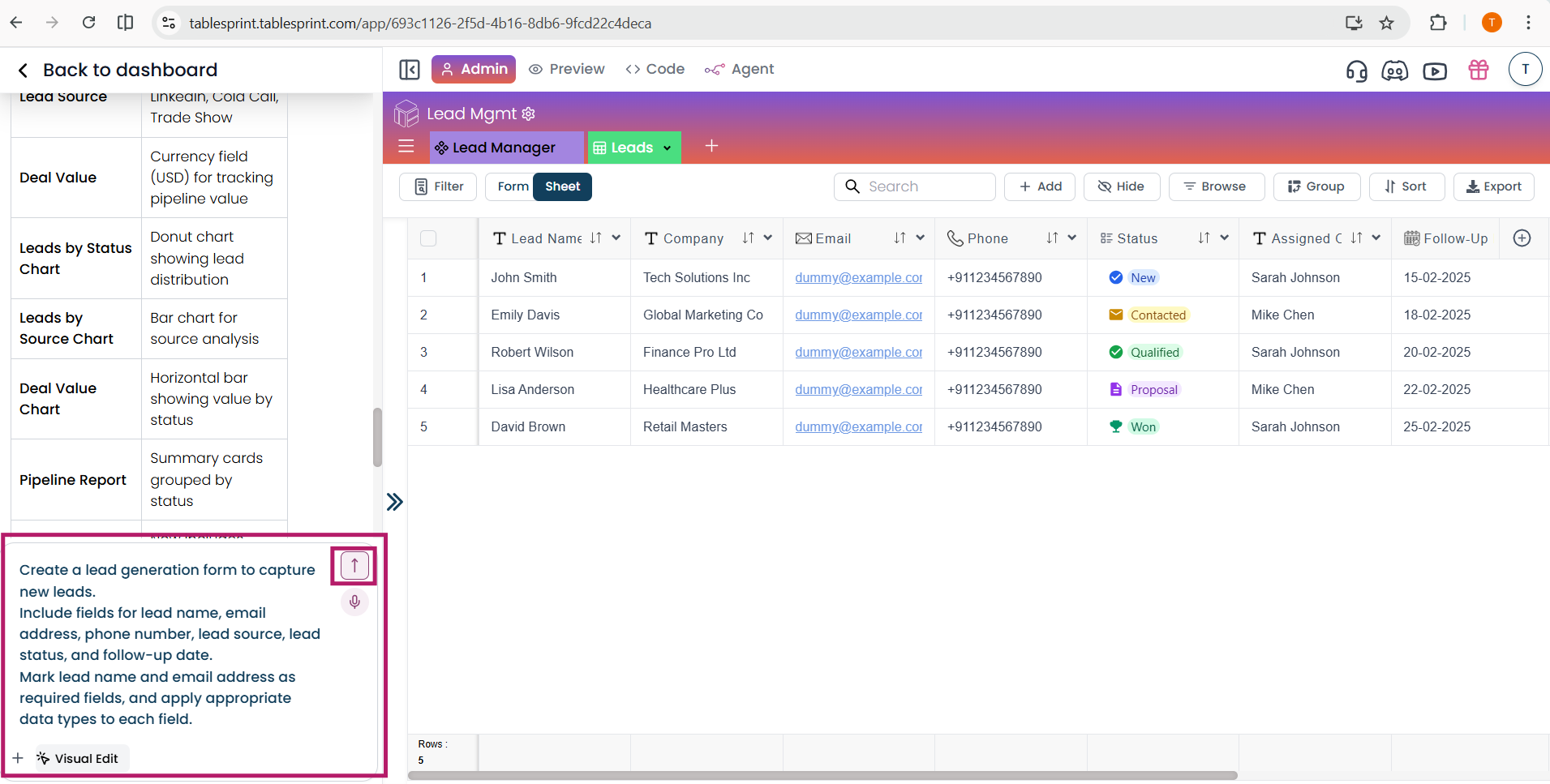
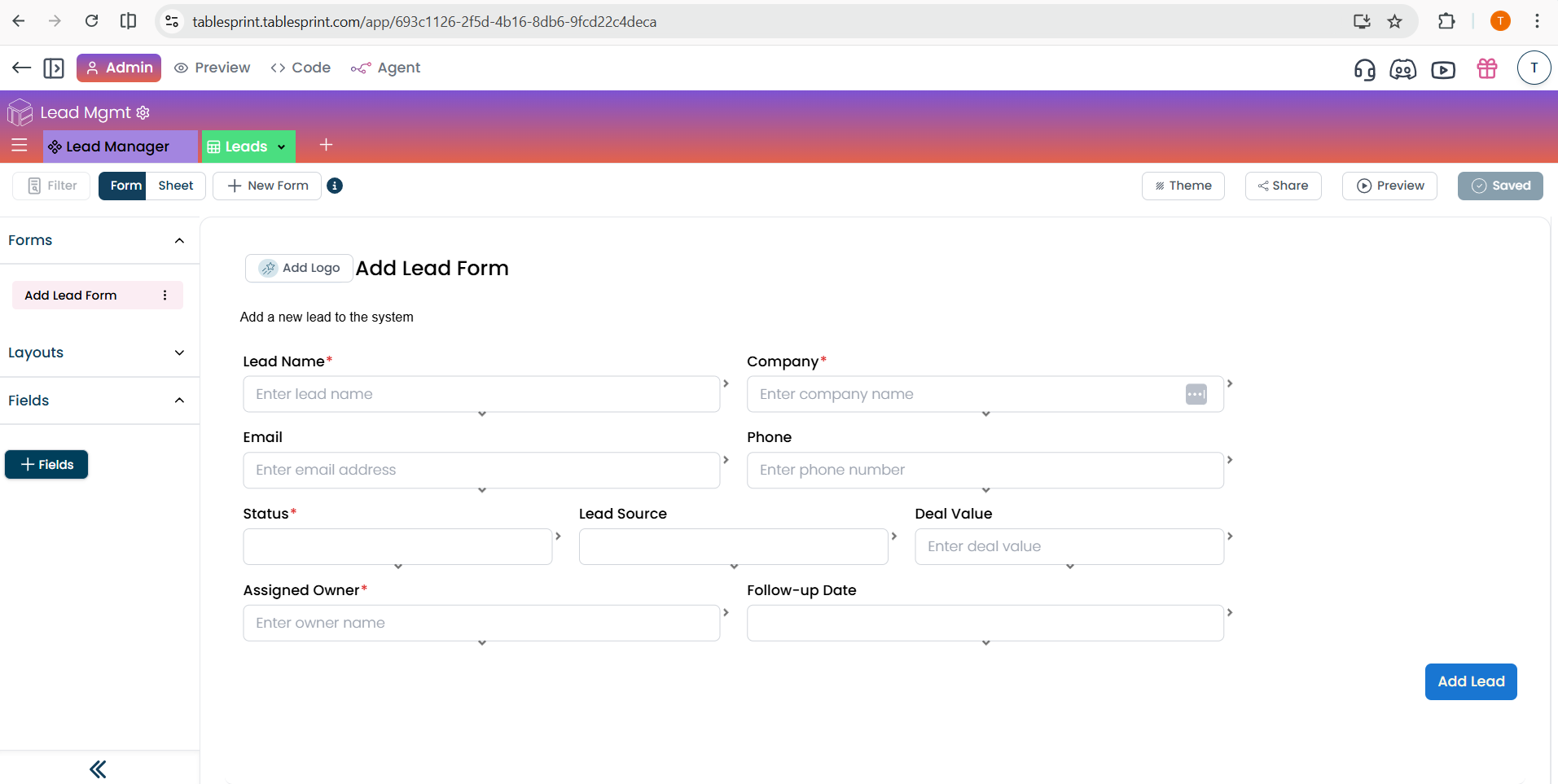
Once the prompt is processed, the form is created and opened directly in the Form Editor, where you can further customize field order, properties, and behavior.
Steps to Create a Form Manually
Form Creation
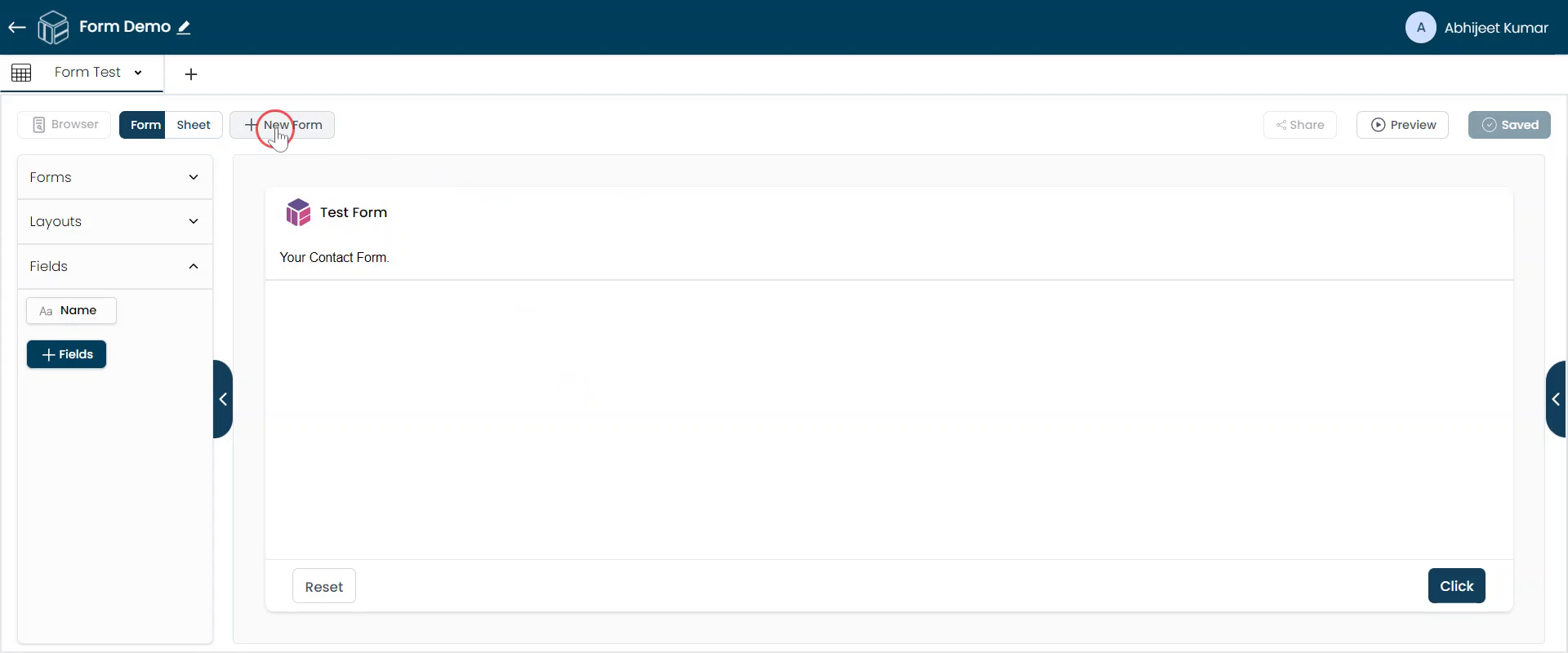
To begin, click "New Form" to create a "Contact Us" form. By default, a "Name" field will be created.
Add Field-1
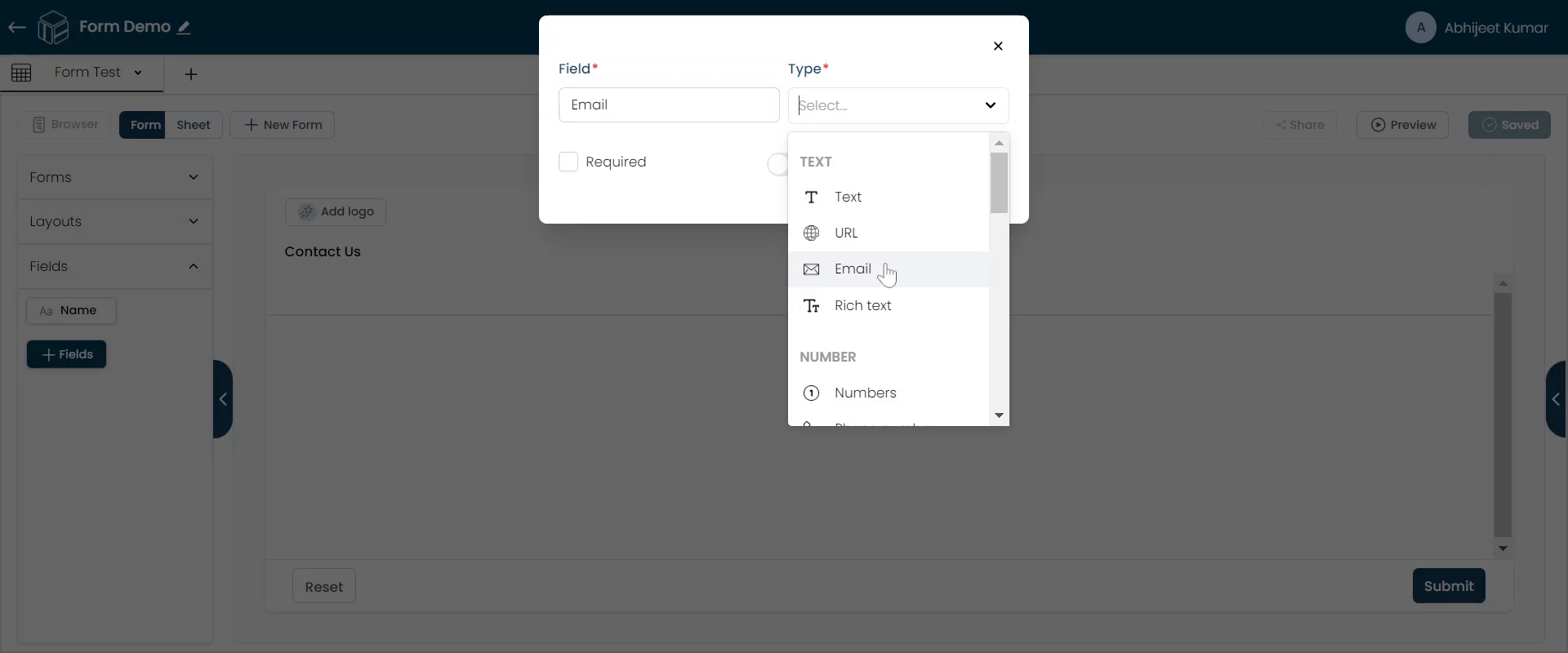
Next, add an "Email" field.
Add Field-2
Add a "Phone Number" field.
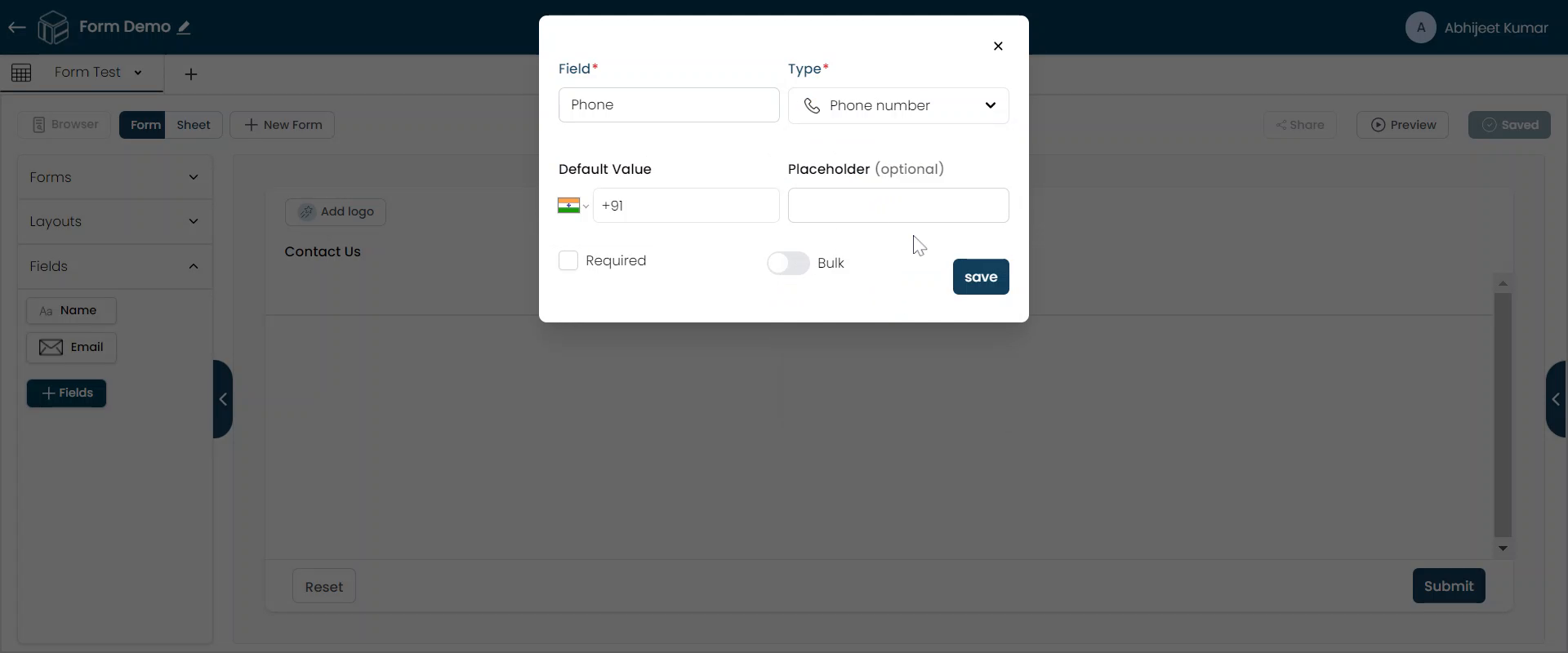
Form Layout
Drag each of these fields onto the canvas to create the form layout. Start by placing the "Name" field on the canvas.
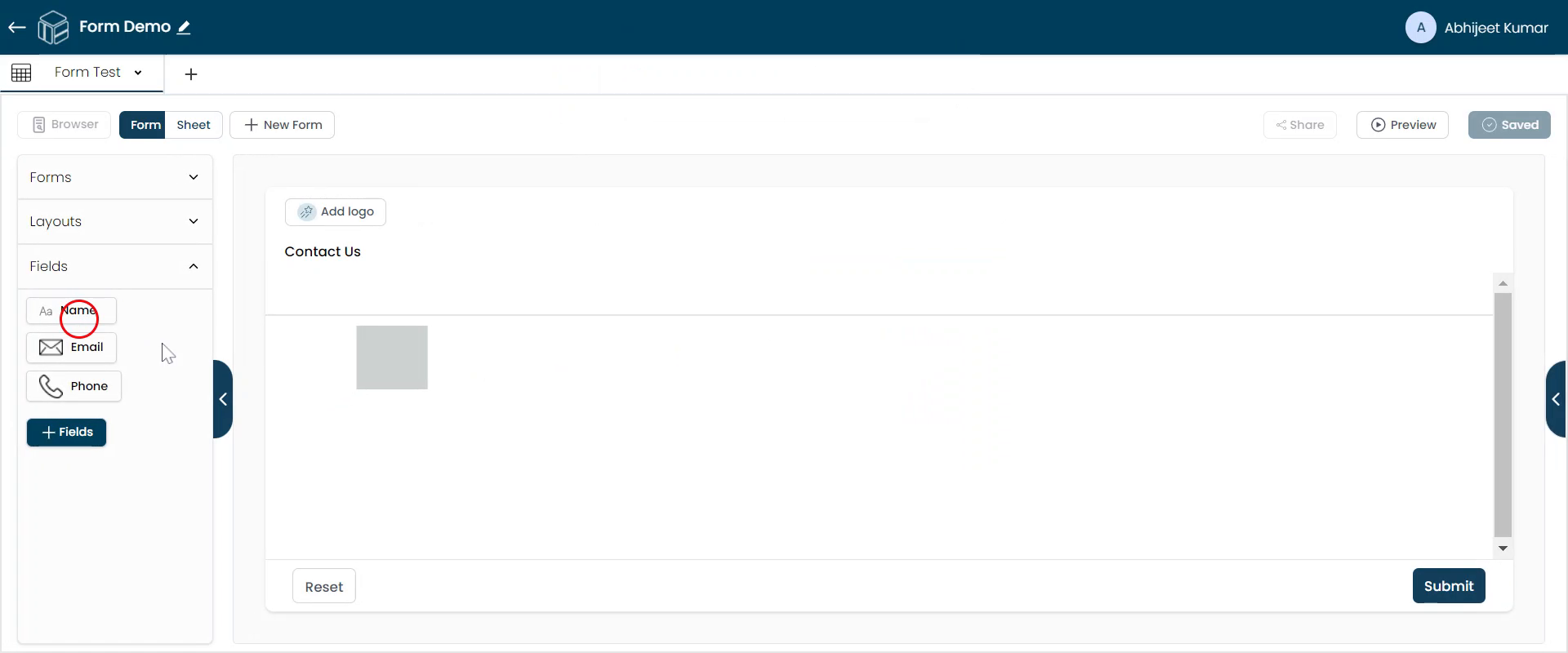
Label Customization
Label the fields appropriately. You can also customize the design of each label.
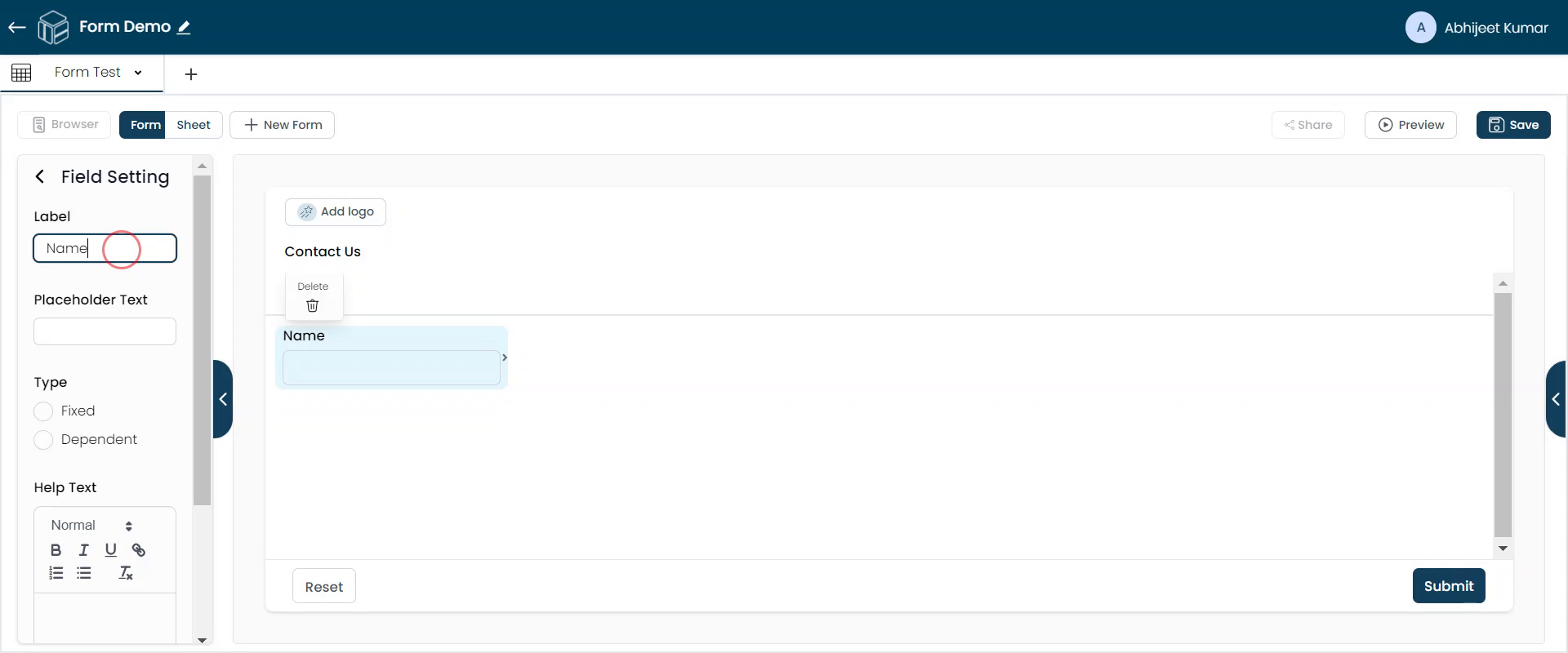
Arrange Fields
Place the "Email" and "Phone" fields onto the canvas. Arrange the fields in a layout that suits your design preferences. You can create multiple formats and add as many fields as needed.
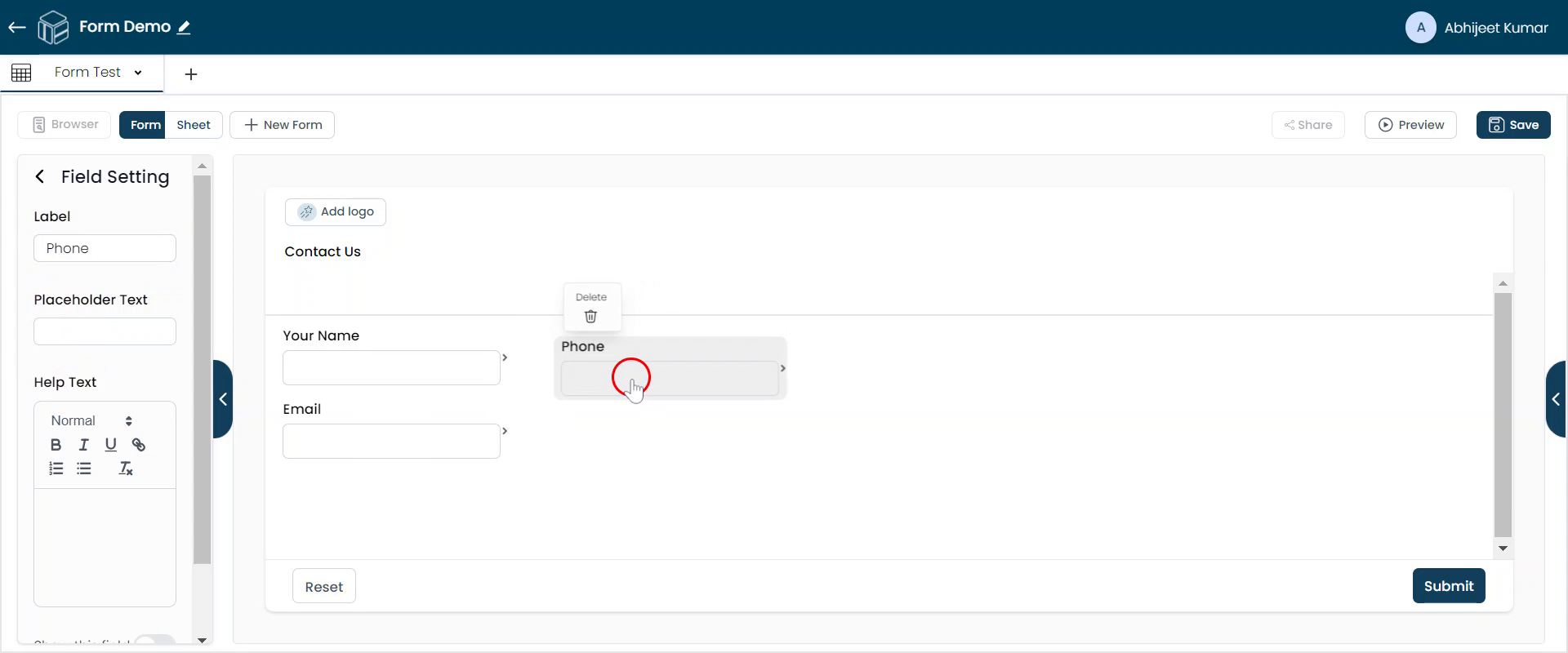
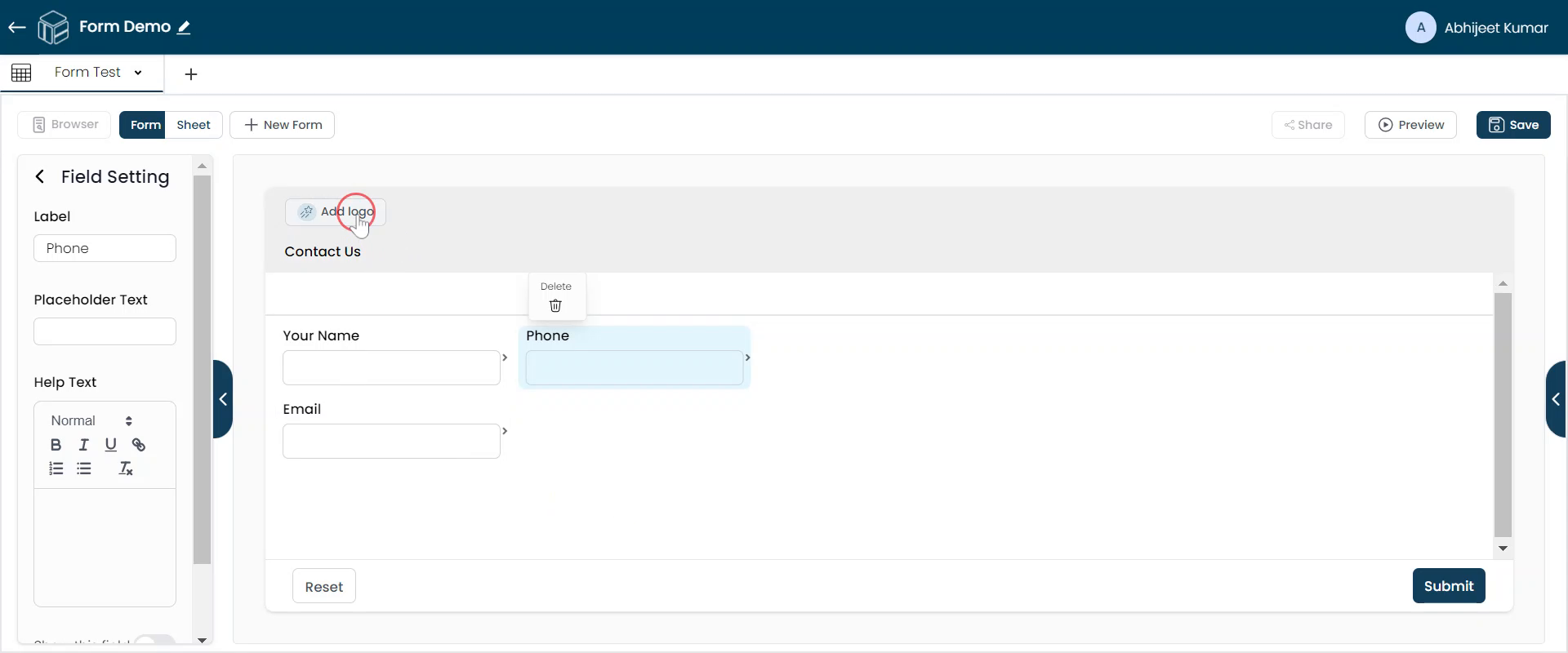
Add Logo
You may add a logo to your form by uploading it to its header.
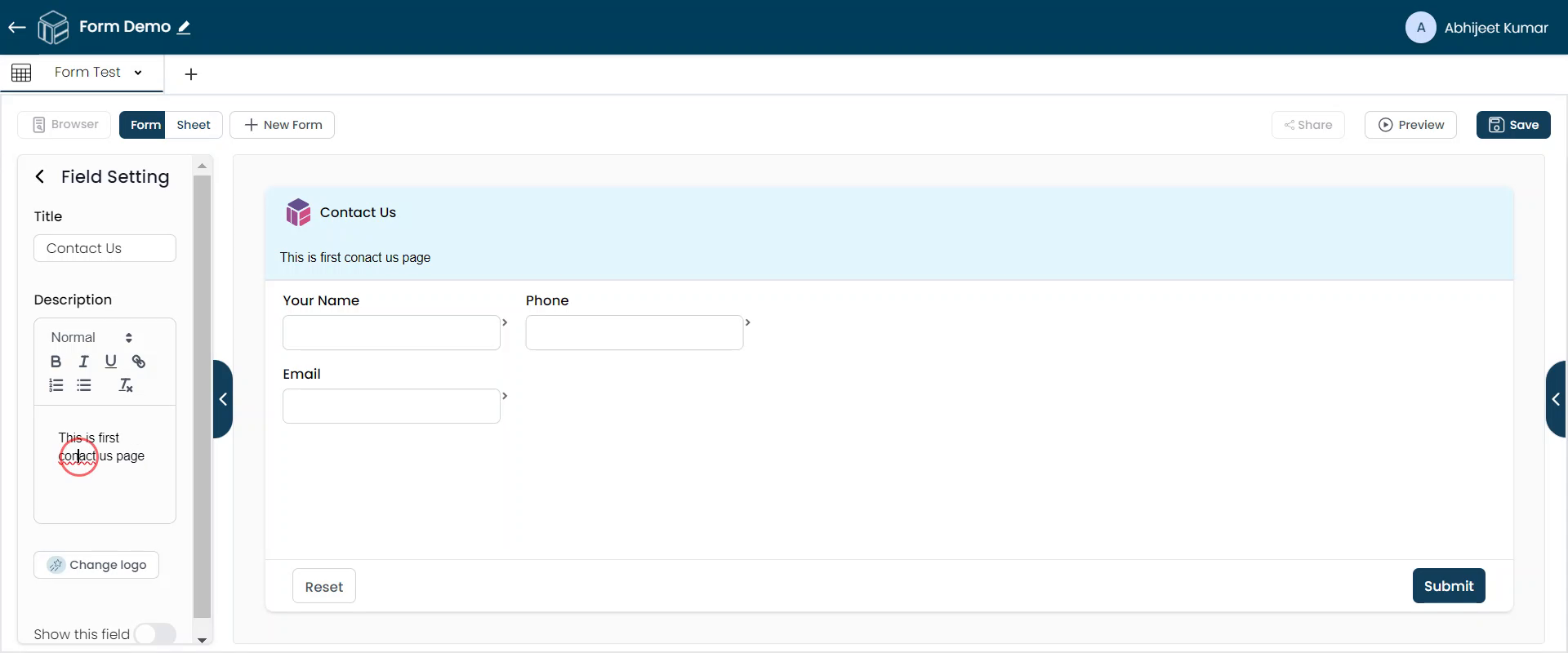
Add Description
Include a description of the form to provide additional context for users. This is your first "Contact Us" page.
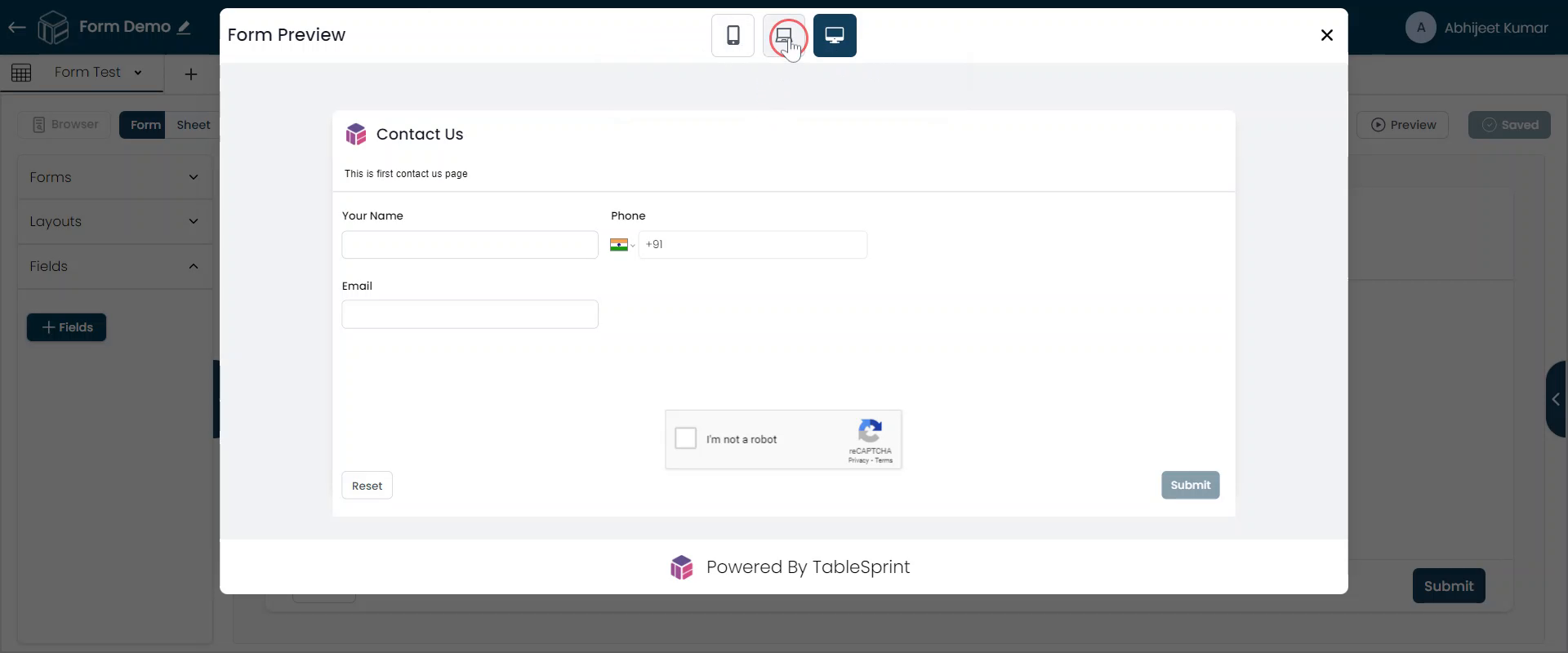
Preview & Save
Click "Save" button. The preview will be available on various devices like laptops, tablets, and mobile phones. Review these previews to ensure everything looks correct.
The following tutorial will cover more advanced features, such as sharing the form on WhatsApp and embedding the form in a website.
FAQ's
How do I start creating a form in TableSprint?
Click "New Form" to create a form.
How do I add fields to my form?
Add an "Email" field, then add a "Phone Number" field.
How do I arrange the fields on the canvas?
Drag each of the fields onto the canvas to create the form layout.
How do I label the fields?
Label the fields appropriately and customize the design of each label.
Can I add a logo to my form?
Yes, you can add a logo to your form by uploading it to its header.
Can I include a description of the form?
Yes, include a description of the form to provide additional context for users.
How do I save my form?
Click the "Save" button to save your form.
Can I preview my form on different devices?
Yes, the preview will be available on various devices like laptops, tablets, and mobile phones.